Printing QR codes on self-adhesive printing paper has become an increasingly popular practice in various industries due to its convenience and versatility. As a supplier of high-quality self-adhesive printing paper, I’m here to share some in-depth insights on how to achieve the best results when printing QR codes on our products. Self-adhesive Printing Paper
Understanding QR Codes and Self – adhesive Printing Paper
Before diving into the printing process, it’s essential to understand what QR codes are and the characteristics of self-adhesive printing paper. QR codes, short for Quick Response codes, are two-dimensional barcodes that can store a large amount of information such as website URLs, contact details, or product information. They are scanned using a smartphone camera or a dedicated QR code reader.
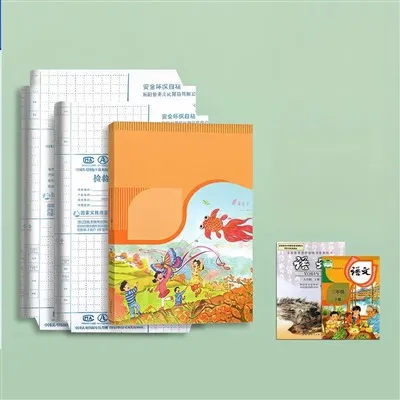
Self-adhesive printing paper, on the other hand, is a type of paper with an adhesive backing that allows it to stick to a variety of surfaces. Our self-adhesive printing paper is specially designed to provide excellent printing quality. It has a smooth surface that ensures sharp and clear printouts, and the adhesive is strong enough to keep the label firmly in place once applied.
Preparing Your QR Code
- Generate the QR Code
There are numerous free QR code generators available online. Some popular options include QR Code Generator, Kaywa, and Google Charts API. When generating your QR code, you need to input the relevant information, such as a website URL or a product ID. Make sure to choose the appropriate error correction level. A higher error correction level can tolerate more damage to the QR code but will result in a more complex pattern. - Size and Resolution
Determine the appropriate size of the QR code for your application. A larger QR code is easier to scan from a distance, but if space is limited, you may need to use a smaller one. The minimum recommended size for a QR code is 2 cm x 2 cm, but for better scanning reliability, especially in low – light conditions or with older smartphones, a size of 3 cm x 3 cm or larger is preferable.
Regarding resolution, a resolution of at least 300 DPI (dots per inch) is required for high – quality printing. This ensures that the QR code is clear and can be scanned accurately.
Choosing the Right Printing Method
-
Inkjet Printing
Inkjet printers are a popular choice for printing QR codes on self-adhesive printing paper. They are relatively inexpensive and can produce high – quality color prints. When using an inkjet printer, make sure to set the printer to its highest quality setting. Use photo – quality or high – resolution paper settings to ensure that the ink is evenly distributed and the colors are vibrant.
However, inkjet prints may be prone to smudging if they come into contact with water or moisture. To prevent this, you can use a clear laminate or a protective coating after printing. -
Laser Printing
Laser printers are known for their fast printing speed and sharp, smudge – free prints. They are particularly suitable for printing black and white QR codes. Laser printers work by using heat to fuse toner onto the paper, which results in a more durable print compared to inkjet printing.
When using a laser printer, make sure to select the appropriate paper type in the printer settings. Some self – adhesive printing papers may have specific temperature requirements for optimal toner adhesion.
Printing Process
- Calibrate Your Printer
Before printing your QR codes, it’s important to calibrate your printer to ensure accurate color reproduction and alignment. Most printers have a built – in calibration function that you can access through the printer settings. Follow the on – screen instructions to complete the calibration process. - Load the Self – adhesive Printing Paper
Load the self – adhesive printing paper into your printer according to the printer’s instructions. Make sure the paper is loaded correctly to avoid jams or misaligned prints. If your printer has adjustable paper guides, adjust them to fit the width of the self – adhesive paper. - Print a Test Page
Before printing a large batch of QR codes, it’s a good idea to print a test page. This allows you to check the print quality, alignment, and color accuracy. Scan the QR code on the test page to make sure it can be read correctly. If there are any issues, such as blurry prints or misaligned codes, adjust the printer settings accordingly. - Print the QR Codes
Once you are satisfied with the test page, you can start printing the QR codes. Make sure to monitor the printing process to ensure that everything is going smoothly. If there are any paper jams or other issues, stop the printer immediately and resolve the problem before continuing.
Post – printing Considerations
- Cutting the Labels
After printing, you need to cut the QR code labels from the self – adhesive printing paper. You can use a pair of sharp scissors or a paper cutter for this purpose. Make sure to cut the labels as accurately as possible to ensure a professional look. - Applying the Labels
Before applying the labels, clean the surface where you want to stick them. Use a clean, dry cloth to remove any dust, dirt, or grease. Peel the backing paper from the self – adhesive label carefully and apply it to the surface, starting from one corner and smoothing it out to avoid air bubbles.
Tips for Optimal Results
- Use High – Quality QR Code Images
Ensure that the QR code image you are printing is of high quality. Avoid using low – resolution or distorted images, as this can affect the scanning performance. - Test Different Printing Settings
Experiment with different printer settings, such as print quality, color saturation, and contrast, to find the settings that work best for your specific printer and self – adhesive printing paper. - Store the Self – adhesive Printing Paper Properly
Store the self – adhesive printing paper in a cool, dry place to prevent the adhesive from drying out or becoming sticky. Keep the paper in its original packaging or a sealed container to protect it from dust and moisture.
Conclusion
Printing QR codes on self – adhesive printing paper is a straightforward process if you follow the right steps. As a supplier of self – adhesive printing paper, we are committed to providing you with the highest quality products that are suitable for a wide range of printing applications. Whether you are a small business owner looking to promote your products or a marketing professional working on a large – scale campaign, our self – adhesive printing paper can help you achieve your goals.
Self-adhesive Printing Paper If you are interested in purchasing our self – adhesive printing paper for your QR code printing needs, please feel free to contact us. We would be happy to discuss your specific requirements and provide you with a customized solution. Our team of experts is always on hand to offer technical support and advice to ensure that you get the best results from our products.
References
- "QR Code Basics" – Various online resources on QR code technology and generation
- Printer user manuals for inkjet and laser printers
- Product specifications of our self – adhesive printing paper
Nanjing Green Label Printing Co., Ltd.
We are one of the most professional self-adhesive printing paper manufacturers and suppliers in China, also support customized service. We warmly welcome you to wholesale high quality self-adhesive printing paper at competitive price from our factory. For pricelist and quotation, contact us now.
Address: No. 116-3 Suyuan Avenue, Jiangning District, Nanjing
E-mail: greenlabel@126.com
WebSite: https://www.chinalabelprint.com/
